
Image Output
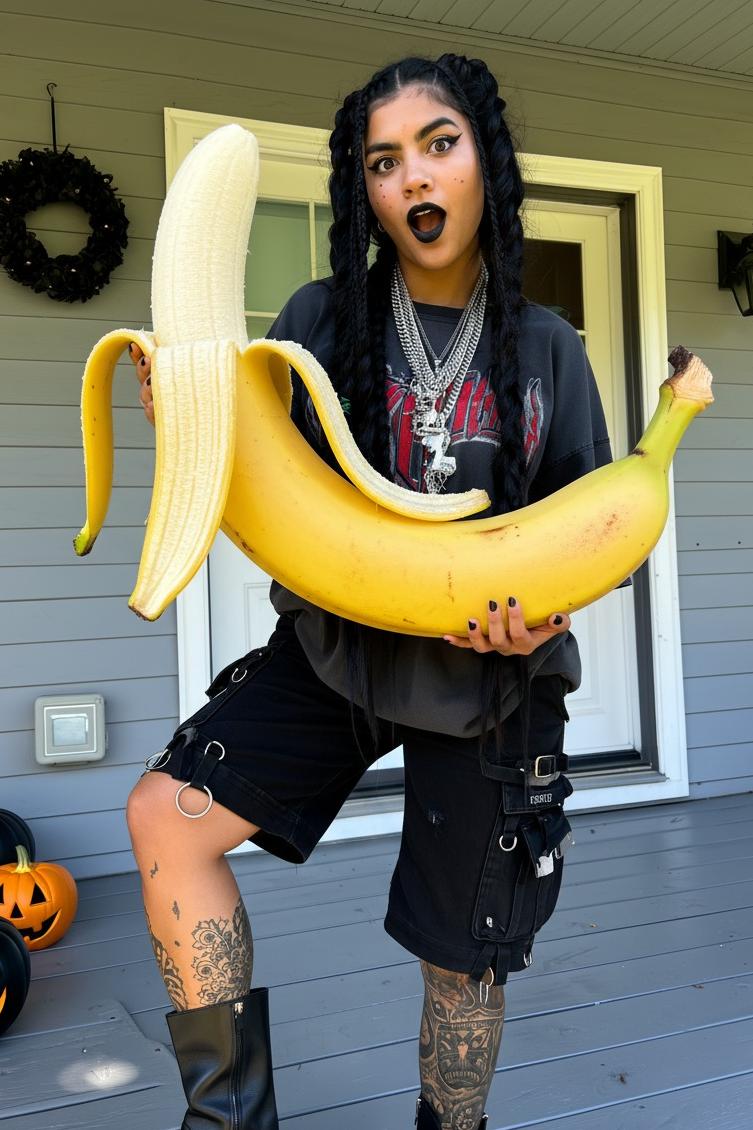
Text to Image Generator — Describe It, See It
Write a description and Mopi AI renders a high-resolution image in the style, ratio and detail level you ask for.
What Mopi AI text to image does
A prompt-first image studio for concepts, product visuals and editorial artwork.
Prompt to image in seconds
Mopi AI follows subject, lighting, lens and style instructions in one pass.
Style and ratio control
Choose photoreal, illustration or cinematic looks and render in the ratio your layout needs.
Multiple image models
Switch between Flux and other supported image models for different aesthetics.
Style Control
Guide the visual style of your output with style presets or detailed prompt descriptions for precise creative control.
Advanced Settings
Fine-tune your generation with seed control for reproducible results and other advanced parameters.
Full-Resolution Download
Download your generated image in full resolution — ready for print, web, social media, or any professional use.
How to create images with Mopi AI
Describe, refine, download — the loop is short enough to iterate in a meeting.
Describe the image
State the subject, environment, lighting and mood.
Pick model and ratio
Choose an image model and an aspect ratio that fits the final placement.
Generate and iterate
Download the result, tweak the prompt and render variations at the same credit price.
What teams make with Mopi AI text to image
Concept art, ad visuals and thumbnails, all from the same prompt box.
Ad and thumbnail visuals
Produce scroll-stopping art in the exact ratio each platform needs.
Concept exploration
Generate ten directions before a designer opens a canvas.
Editorial artwork
Create illustration and cover art without commissioning each piece.
Blog & Editorial
Generate custom illustrations and featured images for articles, blog posts, and editorial content.
E-commerce
Create product lifestyle images, background variations, and promotional visuals without a photographer.
Personal Projects
Generate artwork, portraits, wallpapers, and creative images for personal use or as gifts.
Tips for Better Text-to-Image Results
Prompt techniques that consistently produce higher-quality, more accurate images.
Describe Subject, Style, and Lighting Together
The most effective prompts combine what you want to see, the visual style, and the lighting in one description. Example: 'A cyberpunk street market at night, neon reflections on wet pavement, cinematic wide shot, photorealistic.'
Use Style Keywords
Add style descriptors like 'photorealistic', 'oil painting', 'watercolor', 'anime', 'concept art', or 'studio photography' to guide the visual aesthetic of the output.
Specify Composition and Camera Angle
Include framing details like 'close-up portrait', 'aerial view', 'wide establishing shot', or 'macro photography' to control how the subject is framed in the image.
Use a Seed for Iteration
When you find a result you like, note the seed value. Use the same seed with small prompt variations to iterate on the look without starting from scratch each time.
Add Quality Boosters
Phrases like 'highly detailed', '8K resolution', 'sharp focus', 'professional photography', and 'award-winning' often improve output quality across most models.
Try Different Models for Different Styles
Some models excel at photorealism, others at illustration or concept art. Run the same prompt through two or three models to find the one that best matches your vision.
Who Is Text to Image For?
Anyone who needs visual content — no design skills, no camera, no budget required.
Content Creators & Bloggers
Generate custom featured images, illustrations, and visual content for articles, newsletters, and social media posts in seconds.
Marketers & Advertisers
Create hero images, ad visuals, and campaign assets from a text brief — faster and cheaper than a photo shoot or design agency.
Game Developers & Writers
Visualize characters, environments, and concept art for games, novels, and creative projects without a dedicated artist.
E-commerce Sellers
Generate product lifestyle images, promotional banners, and background variations without hiring a photographer.
Designers & Art Directors
Use AI-generated images as mood board references, style explorations, and rapid concept visualizations before committing to a full design.
Educators & Presenters
Create custom illustrations and visual aids for presentations, courses, and educational materials that match your exact topic.
Why use Mopi AI for text to image
Rendering, storage and download are handled, so the only variable is your prompt.
Consistent credit pricing
Every image render costs the same number of credits for a given model, shown before you click generate.
No watermark on paid output
Downloaded images are clean and ready for commercial layouts.
Library built in
Results stay in your creation history so you can revisit older prompts.
Pay Only for What You Use
Credit-based pricing means you only pay for the images you actually generate — no monthly minimums.
Mopi AI text to image FAQ
What to know before your first image render.
How detailed should the prompt be?
Include subject, setting, lighting and style. Mopi AI handles the rest; longer prompts mainly help with art direction.
Can I use the images commercially?
Paid plans include a commercial licence. Check the pricing page for the exact terms of your plan.
What resolution do I get?
Resolution depends on the selected model and is listed in the generation settings before you submit.
What is a seed and how does it work?
A seed is a number that controls the randomness of the generation. Using the same seed with the same prompt and settings will produce very similar results — useful for iterating on a specific look.
Can I use generated images commercially?
Usage rights depend on the model and your subscription plan. Check the terms of service for details on commercial use of generated images.
How many credits does a generation cost?
Credit cost depends on the model and resolution selected. The required credits are shown before you generate, so there are no surprises.
Is my data private?
Yes. Your prompts and generated images are processed securely and are not used to train AI models or shared with third parties. Files are automatically deleted after processing.
Can I regenerate with the same settings?
Yes. Use the Regenerate button to generate a new image with the same prompt and settings. To reproduce a specific result, note the seed value and use it in future generations.
Who owns the generated images?
Yes. Images generated using Mopi AI are yours to use for commercial purposes. Check the terms of service for full details on usage rights.
How is AI text-to-image different from stock photography?
Stock photography gives you pre-existing images that may not match your exact needs and require licensing. AI text-to-image generates a completely unique image from your specific description — no licensing fees, no searching, and no compromising on the exact look you need.
Why does the same prompt produce different images each time?
AI image generation uses randomness (controlled by a 'seed' value) to produce varied results. This is intentional — it lets you explore different interpretations of the same prompt. To reproduce a specific result, use the same seed value.
What should I do if the generated image doesn't match my prompt?
Try adding more specific detail to your prompt, especially around style, lighting, and composition. You can also try a different model, adjust the resolution, or use a different seed. Iterating with small prompt changes is usually the fastest path to the result you want.